

JR Raphael, IDG
So long, responsibilities!
Google Calendar Android trick #11: Quick creation
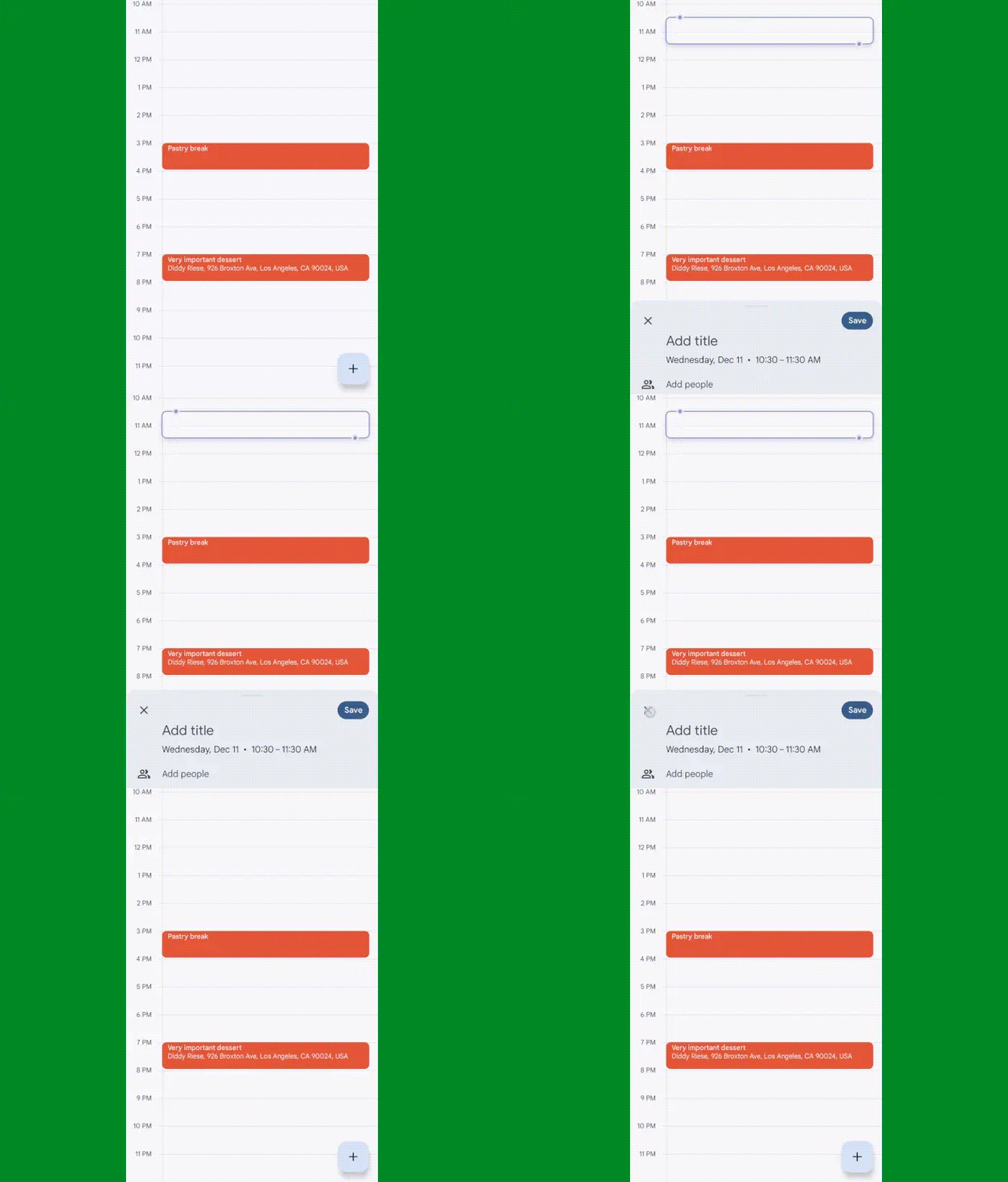
In addition to deleting events at the speed of light, you can also create new events in a delightfully swift way within the Google Calendar app — right from your daily calendar view.
All you’ve gotta do is tap on any open space in that part of the Android Calendar app, and you’ll see an event creation box right then and there:
JR Raphael, IDG
Also worth noting: The same tricks we went over a second ago for sliding around or extending your event’s time will work in this context, too, once you’ve brought that box into focus.
Google Calendar Android trick #12: Easier adding
For reasons I’ll never quite fathom, Google recently removed an exceptionally useful shortcut for double-tapping the Calendar app’s new event button to move past the standard menu of options and zoom right into the new event creation interface. Bah!
But while that capability is seemingly now in the ever-cluttered Google graveyard, there is another helpful way to create a new event without wasting any unnecessary steps or time. In fact, you don’t even have to futz around in the Calendar app at all to find it.
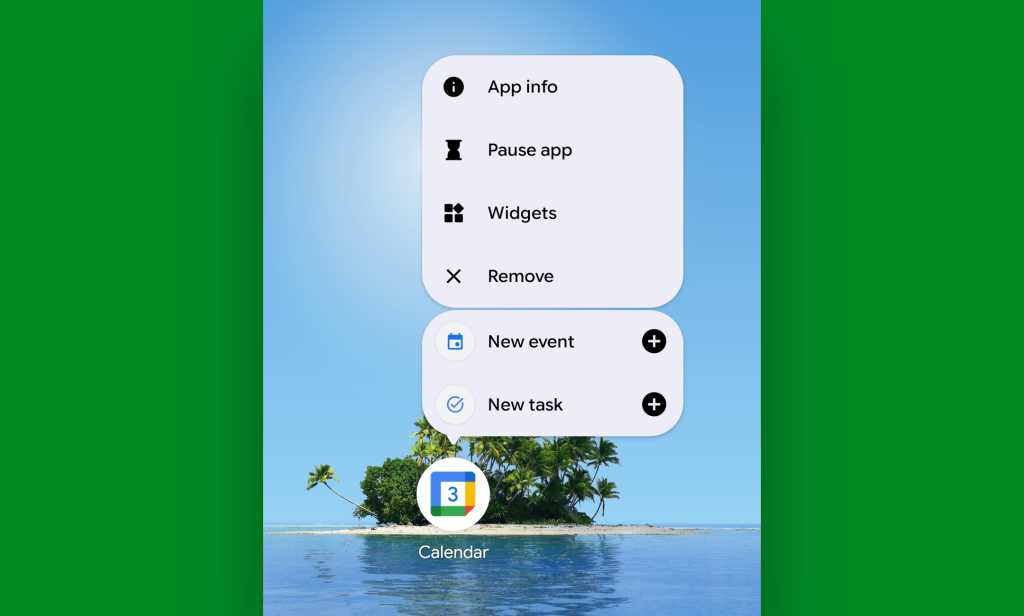
It’s something known as an Android app shortcut, which means all you’ve gotta do is press and hold the Calendar app’s icon on your home screen or in your app drawer to find it.
One quick long-press on that icon, and you’ll see a direct link to the Google Calendar new event function — no app-opening, button-pressing, or menu-wading required:
JR Raphael, Foundry
If you really wanna get fancy, you can also press and hold your finger onto the “New event” shortcut to drag it directly onto your home screen for even easier ongoing access, so it’s never more than a single tap away.
Google Calendar Android trick #13: Practical pinching
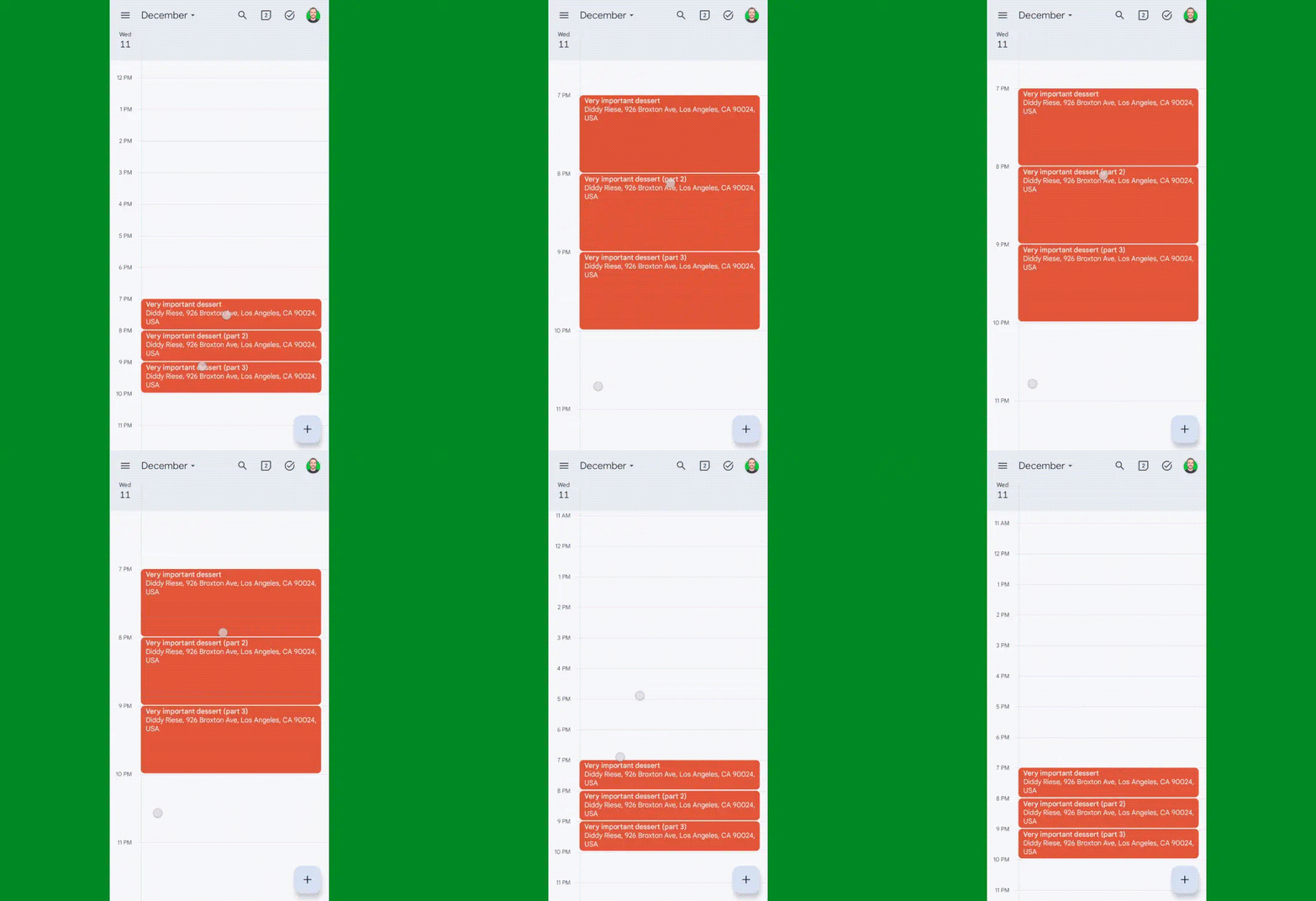
While we’re thinking about all this tapping and swiping, make a mental note of this: Whilst gazing uponst the Google Calendar app’s Day, 3-Day, Week, or Month view on Android, you can actually pinch your fingers apart on the screen to expand the interface and make everything bigger — or pinch ’em together to condense it and make all the elements smaller.
The key is to place your fingers on top of each other and move ’em in an up and down motion or diagonally — not sideways:
JR Raphael, IDG
Whee!
Google Calendar Android trick #14: Find the time
Here’s a fun one I discovered a while back, thanks to a tip from a resourceful Android Intelligence reader:
When you’re looking at the Google Calendar Android app’s Day view and you have an event that starts at a time that isn’t at the top of an hour — say, at 12:30 p.m., 1:05 p.m., 3:33 p.m., or any other such number — it can be tough to know exactly what time the event begins at a glance.
But if you press and hold your finger onto the event for a second, the Calendar app will adjust the number on the time grid at the left to show the exact start time for that specific item.
See?

JR Raphael, IDG
The precise time will remain present for as long as you keep your finger pressed.
And speaking of that area of the Android Calendar interface…
Google Calendar Android trick #15: A jaunty jump
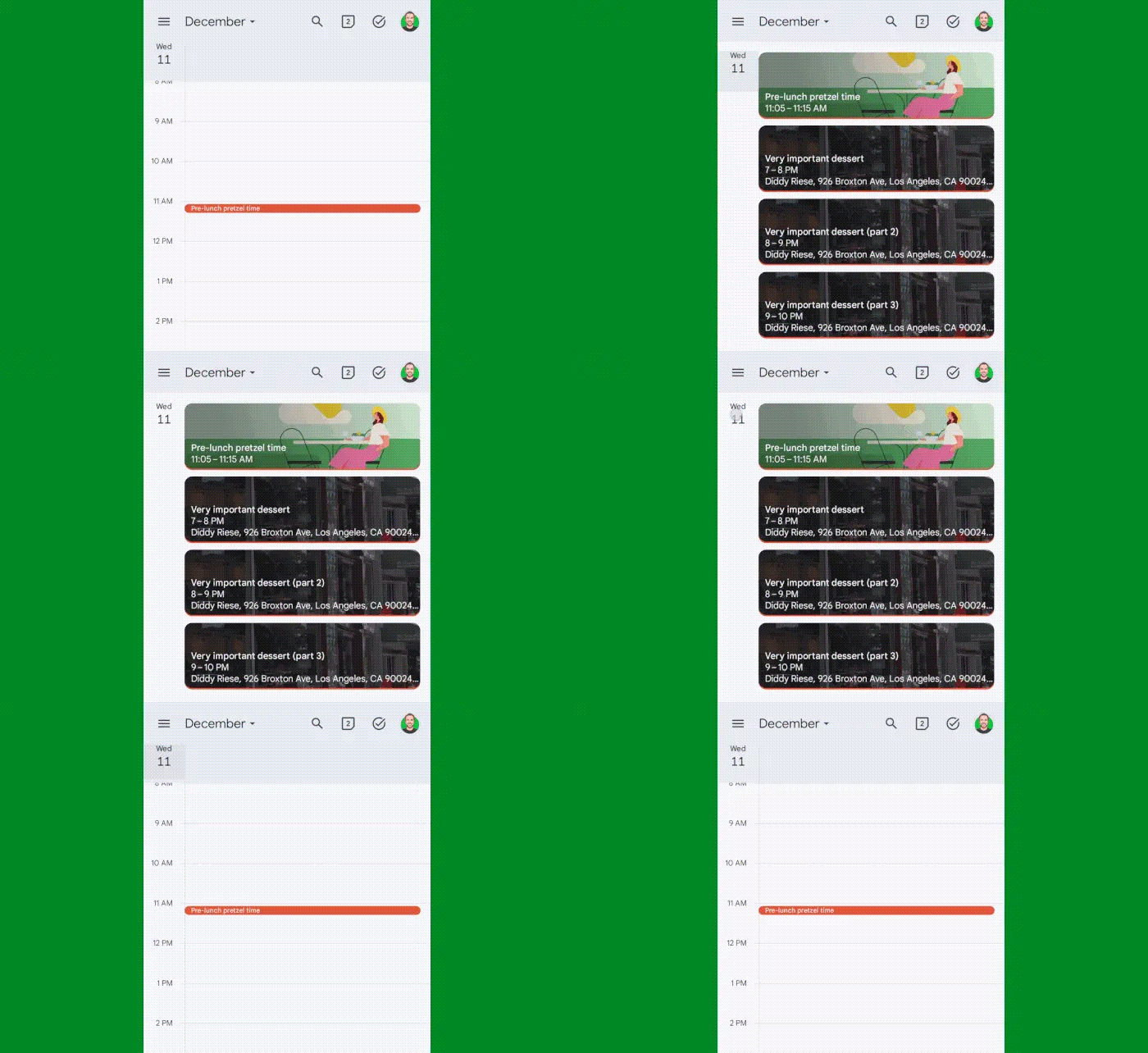
An easy and not-at-all-obvious way to move between different calendar views is hiding in the leftmost column of the Google Calendar app’s Android interface — specifically, in the Day and Schedule views.
Starting in Schedule, you can tap the day name and number next to any events to jump directly to the Day view for that date — and then, when in the Day view, you can tap that same day name and number indicator (now in the upper-left corner of the screen) to bop back over into Schedule.
JR Raphael, IDG
Hip, hip, hoorah!
Google Calendar Android trick #16: Meet no more
Have you ever noticed how Calendar developed an irksome habit of automatically adding Google Meet links into every forkin’ event you create?
That’s fine and dandy if your event actually includes a Meet-based video meeting, but it’s pretty annoying — and potentially confusing — when your event is something that’s in person. Worse yet is when your event is virtual but in a different video meeting service, like Zoom, and then everyone you invite ends up getting both the correct link and a meaningless Meet link for the same event.
Here’s a little secret: You can put a stop to this madness. And all it takes is a handful of quick taps in your Android Calendar app.
Open up Google Calendar on your phone, tap the three-line menu icon in its upper-left corner, and scroll down to the bottom to select “Settings.”
Tap “General,” then tap “Add video conferencing” and turn the toggles into the off position for every account you’ve got connected.
Now, if you ever want to add a Meet link to an event, you can do so manually whilst creating said event. But by default, those blasted links won’t get auto-added onto every single event for you.
Google Calendar Android trick #17: Smarter silencing
This one is technically an Android feature, but it works hand in hand with Calendar and is one of the most practical options out there: the ability for your phone to automatically silence itself anytime an event from your Google Calendar is underway.
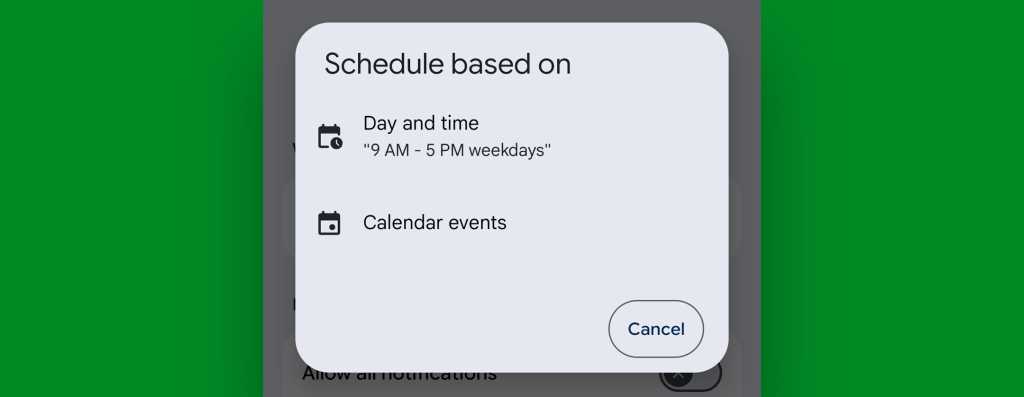
All you’ve gotta do is enable it, provided your phone-maker hasn’t removed the option: On a device running Android 16 and up without any major manufacturer modifications, look for the new Android Modes menu within your main system settings. Tap the option to create your own custom mode, give it a name like “Events,” then tap the option to “Set a schedule” and select “Calendar events” from the pop-up that appears next.
JR Raphael, Foundry
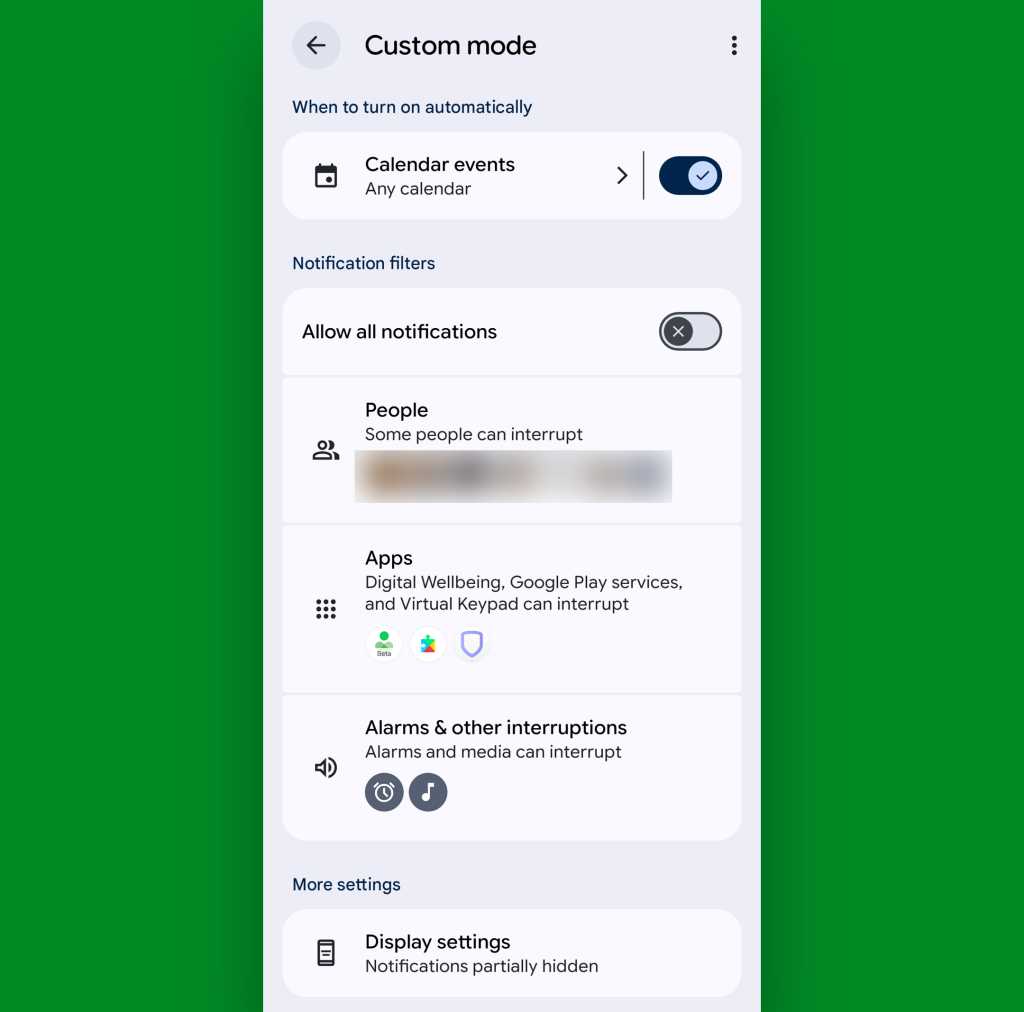
Then, you can customize to your heart’s content — selecting which specific calendar and sorts of events will trigger the mode and deciding exactly what happens when it’s active and what, if any, exceptions for its phone-silencing action should exist.
JR Raphael, Foundry
Not seeing any of this on your device? If you’re using a phone with an older Android version, a similar sort of setup may exist within a “Do Not Disturb” area of your system settings — within the Sound section.
If you’re using a phone whose manufacturer has fudged around with this part of the operating system — as is the case, unfortunately, with Samsung and its many Android gadgets — you can set up your own standalone equivalent of the same basic concept by embracing this purpose-specific app or the brilliantly versatile MacroDroid automation creation utility.
Google Calendar Android trick #18: Rapid responses
Just like Android itself allows you to send a prewritten quick response when you’re rejecting a call, Google’s Android Calendar app can let you send a speedy note to anyone involved in an upcoming meeting — all with a couple quick taps on your phone.
To configure the feature, open up the Calendar app, tap the three-line menu icon in the upper-left corner, and select “Settings” from the menu that appears.
Next, select “General,” then scroll down until you see “Quick responses.” Tap that — and there, you’ll see four options for prewritten messages you can fire off on the fly while en route to any appointment involving multiple mammals.

Oddly, Calendar doesn’t let you create additional responses, but you can edit any of the default responses to make it say whatever you want. Just tap any one of ’em and then replace it with whatever text your silly ol’ heart desires.

To put your custom quick responses to use, open up any upcoming event that has at least one other person invited. Tap the envelope icon within the “Guests” line, then tap the response you want from the list.
That’ll take you directly to a ready-to-roll email with your message in place and the recipients added in. All that’s left is to hit “Send” — and maybe let out a guffaw in delight, should such inspiration strike.
Google Calendar Android trick #19: Duplication elation
Ever find yourself needing to create a new event that’s remarkably similar to one already on your agenda? The Google Calendar app for Android has an easy way to duplicate an event and then use it as a blueprint for a new one: Just tap the event you want to emulate, tap the three-dot menu icon in its upper-right corner, and select — yup, you guessed it — “Duplicate.”
And that’s it: Your new event will show up with the original event’s info filled in and ready for to be tweaked as needed.
Doesn’t get much easier than that.
Google Calendar Android trick #20: Nicer notifications
Google Calendar’s default notification times for new events aren’t right for everyone. If you find yourself changing the setting for when an event will notify you more often than not (and/or quietly muttering creative curses every time an event notifies you earlier or later than you’d like), do yourself a favor and adjust your Calendar’s default notification times so that they work better for you.
Just head back into the Calendar app’s settings section — and this time, find the section for the Google account you want to modify and tap the “My calendar” line beneath it. That’ll give you a screen on which you can change the default notification times for standard new events as well as all-day events. You can even add multiple notifications, if you want, and change the default color for events on that calendar while you’re at it (ooh, ahh, etc).

If you want to change the default notification time for tasks or for any secondary calendars you’ve created within a particular Google account, just find the appropriate line beneath the account’s header and select that instead of “My calendar” — then make the same sorts of modifications there.
Google Calendar Android trick #21: Weather tether
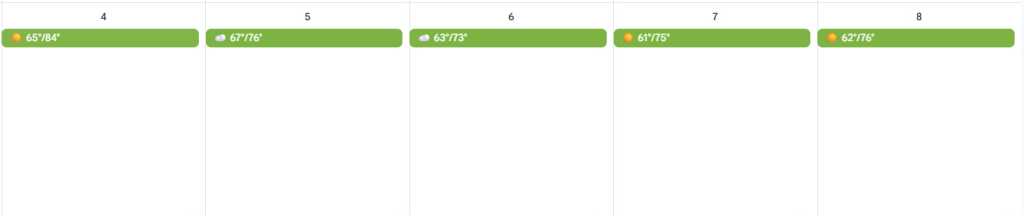
Imagine how helpful it’d be if you could see a quick glimpse at the forecast for an upcoming day whilst you’re looking at your agenda. It’d certainly be a sensible agenda addition — no?
Well, with a teensy touch of creative tinkering, you can make it happen — thanks to a thoughtful third-party add-on that integrates directly into the Google Calendar environment.
It’s a site called, fittingly enough, Weather in Calendar. Just fire it up, follow the simple steps to select your city and add its weather into your calendar, and you’ll always know what conditions to expect while you’re in the midst of planning.
JR Raphael, Foundry
Google Calendar Android trick #22: Secret codewords
Last but not least: Hardly anyone knows this, but there’s a way to hack the Calendar app’s illustration system and make any of Google’s contextual graphics appear on any event you want.
The trick is simply learning the Calendar app’s secret codewords and then putting ’em to use exactly how you want.
Check out this thorough list of Google Calendar codewords, and get ready to give your calendar a whole new customized look.
And with that, your Android calendar experience is officially upgraded. Now all you’ve gotta do is get everything on your agenda accomplished — and that, my dear amigo, is squarely on your shoulders.
Get even more advanced shortcut knowledge with my free Android Shortcut Supercourse. You’ll learn tons of time-saving tricks for your phone!
