


Create a scheduling poll to find the best meeting time for most
If you’ve added a lot of co-workers to your new meeting and can’t find any time slots in the Scheduling Assistant when everyone is available, you may be able to email a poll to have your co-workers vote for their most preferred date and time. This scheduling poll is available in certain environments including New Outlook for Windows, Outlook for web, and Teams for web. It’s not available in Classic Outlook or in the Teams or Outlook mobile apps.
In the “New event” panel, click the Scheduling poll button; most users will find this button on the top toolbar. The “Scheduling poll” panel opens along the right, showing a list of meeting times and how many invitees are available for each time. Select a few time slots for your co-workers to consider, focusing on those that you think would work well for most of them. Then click the Next and Create poll buttons.
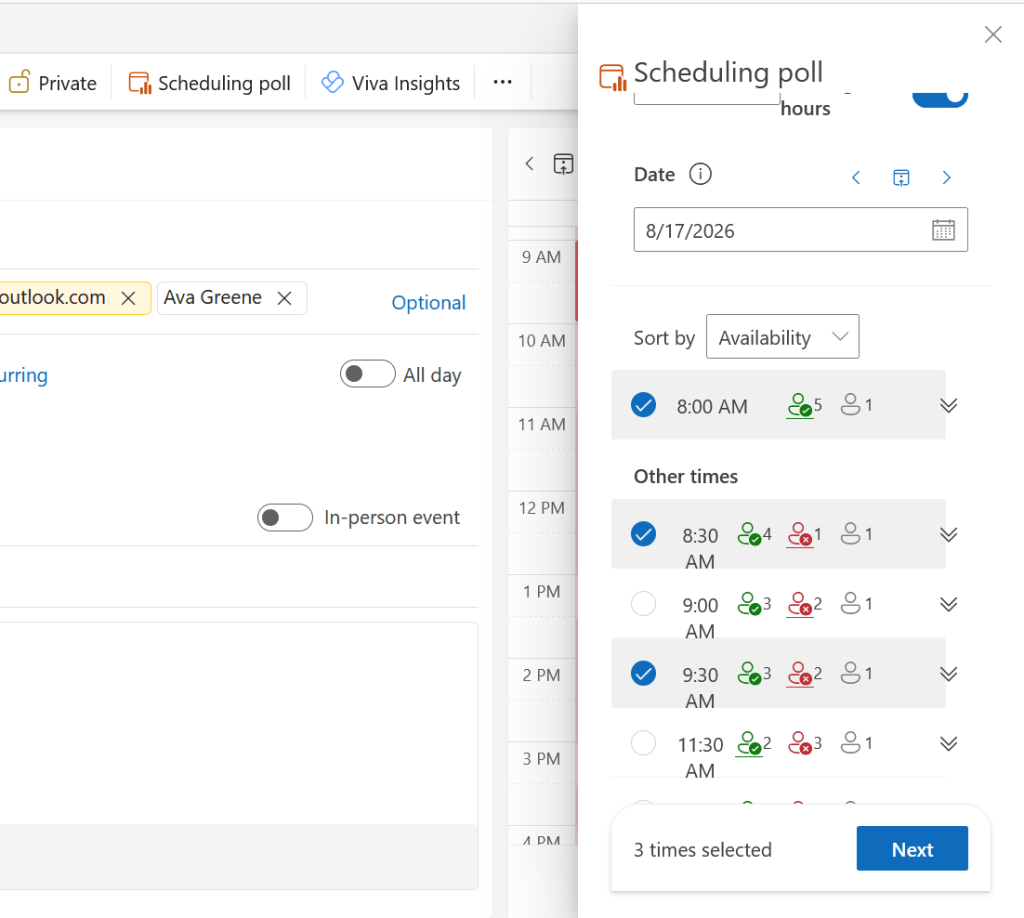
Setting up a scheduling poll in Outlook.
Howard Wen / Foundry
If you’re using a Mac, the Scheduling poll button is to the right of the date and time field, next to the Scheduler button. Clicking it adds a list of suggested meeting time slots based on invitees’ availability right in the “New event” window. You can add more time slots by clicking Add new option. Then fill out the rest of your meeting details and click Send.
An email will be sent to your invited co-workers, and the meeting will be automatically scheduled for the date and time that reaches a consensus vote.
