


JR Raphael, Foundry
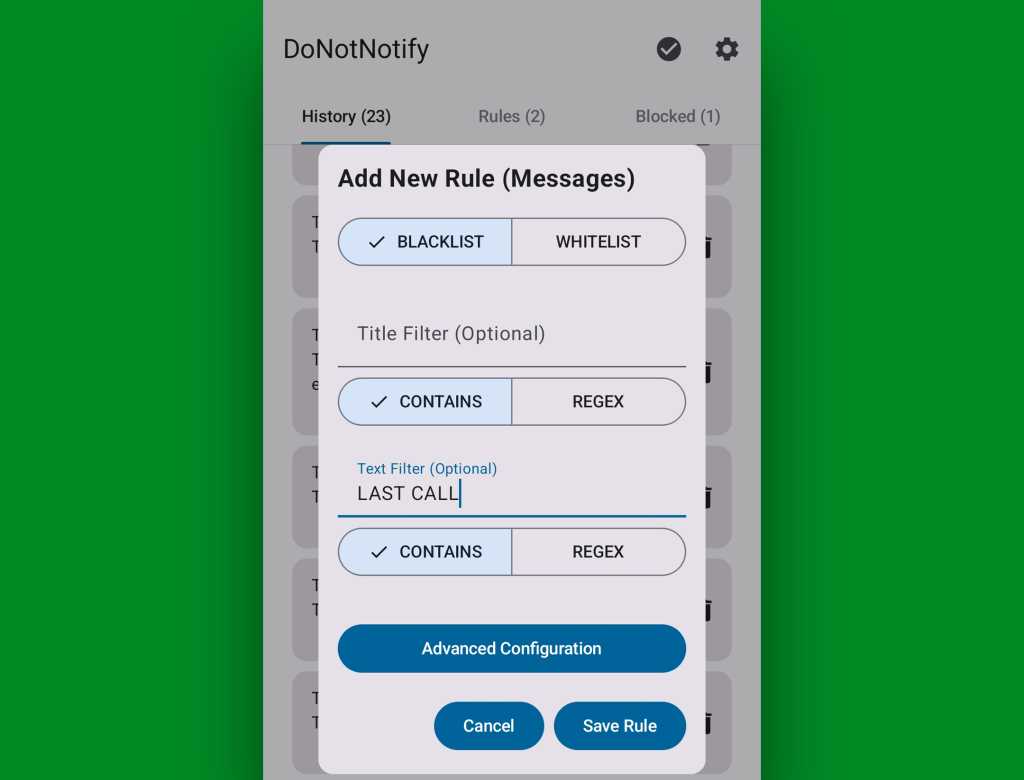
When you’ve got everything how you want it, tap “Save Rule” — and that’s it: The next time you receive a notification that meets the conditions you specified, it won’t beep, buzz, or appear in any way on your screen. DoNotNotify will instantly and automatically muffle it, and the only way you’ll know it even appeared is to look in DoNotNotify’s “Blocked” tab to see it.

JR Raphael, Foundry
Now, fair warning: This will work exactly as described above — and it could create problems if you aren’t careful. If, for instance, you ask DoNotNotify to block all notifications from Google Messages that contain the word “the,” it will do it. And that means any notification you receive from Messages that has “the” anywhere within its text won’t notify you, and you’ll never notice its arrival.
It’s a powerful tool, in other words, and it’s up to you to wield that power wisely and think through the complete consequences of any rules you create. The good news, of course, is that it’s quite easy to revisit your rules, see exactly what messages DoNotNotify is blocking, and adjust or remove things as needed anytime.
