

Win-win, I’d say.
Google Chrome feature #5: A reading companion
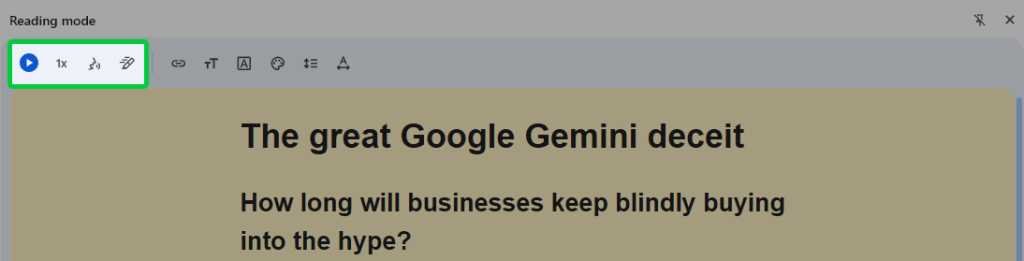
While we’re looking at that reading mode option, we also need to take note of an inconspicuous set of icons resting within its upper border.
See that little play button and the three options alongside it?
JR Raphael, Foundry
Yup — those are the ones.
Clicking the play button will cause Chrome to read the text from the reading mode window out loud to you, which can be a handy way to ingest info when you’re also ingesting your lunch. (Mmm…lunch.) The buttons next to it will let you change the speed of the reading and the specific voice used, among other adjustments.
And for an extra easily-overlooked addition, note, too, that you can also highlight specific segments of text within the reading mode area and then click the play button. That’ll cause Chrome to read only those exact segments aloud — an interesting way to share specific snippets with a room of colleagues, koalas, or maybe even koala colleagues, depending on your current workplace situation.
Google Chrome feature #6: Tab torque
As a certified lifelong tab hoarder, you’d think I’d remember to use this next Chrome feature. But somehow, I never do.
It’s a super-simple way to switch tabs using only your keyboard — and to find the exact tab you want to toggle to, no matter which window it’s within or how buried on your desktop it might be.
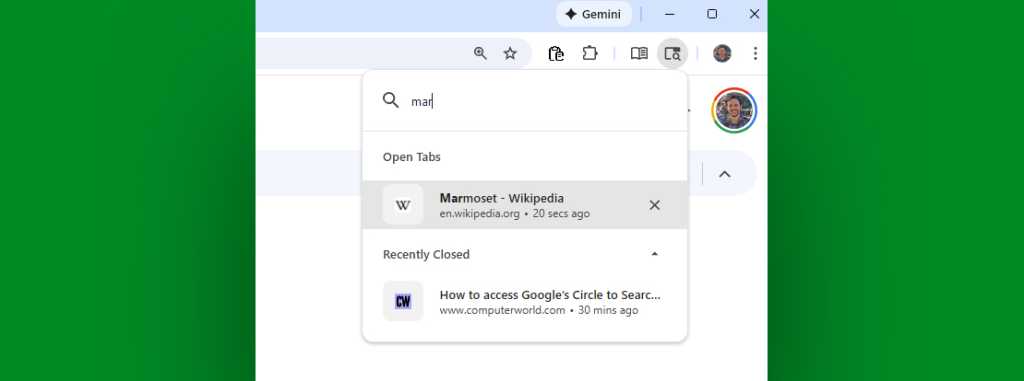
Just hit Ctrl-Shift-A (or Cmd-Shift-A, if you’re one of those highfalutin Mac-owning marmosets). No matter where you are in Chrome or what else you’re working on, your browser will pop up a handy little window with all your open and recently closed tabs.
You can then either use your keyboard’s arrows to move to the one you want or just start typing the title of the page you’re looking for — and, as Chrome narrows down the list to match, hit Enter when the right one is highlighted.
JR Raphael, Foundry
Yes, please — and thank you.
A bonus feature: Instant device beaming
This last feature isn’t technically part of our same collection, ’cause it isn’t especially recent at all. But it’s one of those things I think a lot of people forget (or never even realize) is possible — and it’s so forkin’ useful, I’d be remiss not to mention it as part of this conversation.
So here ’tis: As long as you’re signed into the same Google account within Chrome on your various devices, the Chrome desktop browser has a supremely handy system for beaming any page you’re viewing on your computer directly over to your favorite Android phone or tablet.
It’s a swift ‘n’ simple way to send something you opened at work onto your mobile device so you remember to look at it later — or maybe just leisurely read through it on your lunch. (Mmm…lunch.)
With any page you’re viewing, click Chrome’s three-dot main menu icon — in the browser’s upper-right corner — then hover over “Cast, save, and share” and select “Send to your devices.”

JR Raphael, Foundry
It’s about as out of the way and buried as can be, but man alive, is it a treasure you’ll embrace and appreciate once you get yourself in the habit of relying on it.
And that’s something that, with enough training and practice, even the mushiest old mammal brain can be conditioned to do.
Related reading: 9 Google Chrome features you really should be using
Got Android? Get my Android Intelligence newsletter for three fresh tips each Friday, straight from me to you.
