


Using the Mic button and dropdown, you can select your audio devices, including your speaker volume. In most cases, Teams selects this correctly, but if you want to switch to a Bluetooth or USB headset, for instance, choose the right device from the Speaker and Microphone section of the right pane. (For headsets, you’ll most likely choose the same device for speaker and microphone.) If you want to start the meeting with your mic off, just click the button.
Under the More control, you can opt to record and transcribe a call, insert video effects, change audio, ask for translation options, and other settings.

More options to control a call in progress.
Jonathan Hassell / Foundry
To share other content with participants, click Share. You can then elect to share your screen, collaborate on a shared digital whiteboard, present a PowerPoint slide deck, or share individual files to your meeting participants without broadcasting them on the screen.
Working with files and OneDrive
Teams integrates deeply with SharePoint and OneDrive, making file collaboration seamless throughout the platform. When you share files in a channel, those files are automatically stored in the team’s SharePoint site. Similarly, files that are shared in a chat are stored in your OneDrive for Business account.
The Files menu in a Teams channel offers several useful features for document management. It displays all documents that have been shared in that particular channel, allowing you to create new folders to organize your content, upload files from various sources, and open relevant libraries in SharePoint when you need to do so.
To upload files to Teams, you can navigate to the Files menu within a channel (remember, that’s the dropdown menu under the channel name). You can upload a file with the three-dot menu or create a new file of a typical type, like a Word document or Excel spreadsheet, using the + New menu. Alternatively, you can drag and drop files directly into the Files tab or even into a conversation thread for quick sharing.
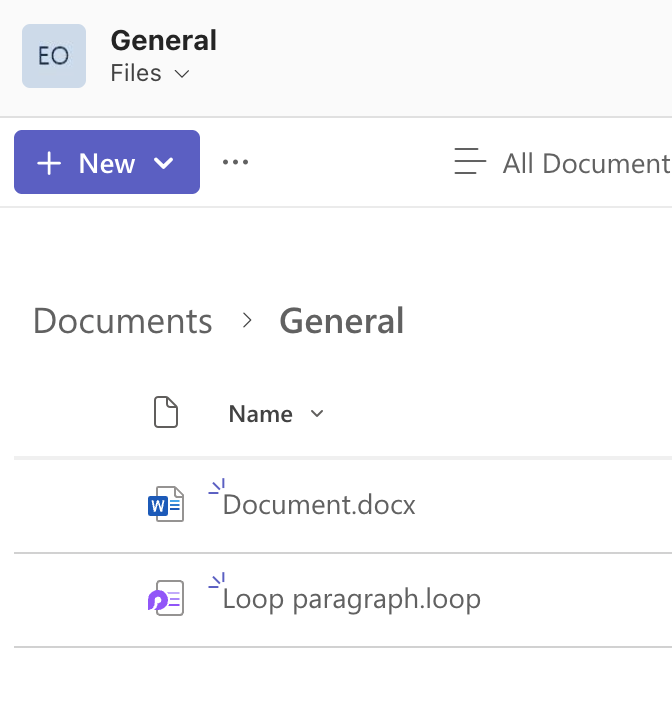
Working with files inside a channel.
Jonathan Hassell / Foundry
When you need to work with files in Teams, you can edit them directly within the application. Office files can be edited right in Teams by simply clicking on a file to open it. If you prefer the full desktop experience, you can choose to open files in Word, Excel, or PowerPoint by selecting the Open in Desktop App option. Teams also supports co-authoring, which means multiple people can edit the same document simultaneously. Additionally, you can access the version history to review previous versions of documents through the three-dot menu.
Teams recently updated its interface to bring OneDrive functionality directly into the Teams environment. This integration allows you to access your personal OneDrive files without having to leave the Teams application, streamlining your workflow.
To access OneDrive within Teams, you can click on the OneDrive option in the left navigation panel. This integration makes it significantly easier to share personal files in Teams conversations without the inconvenience of switching between different applications.
Microsoft Loop within Teams
Microsoft Loop components are collaborative blocks of content that can be shared and edited across Microsoft 365 apps, including Teams. These components function as living, shared content blocks that operate similarly to a task list, table, or paragraph, but with a key difference: they stay in sync across applications. When you create a Loop component in Teams and share it in Outlook, any edits made in either location will update everywhere the component appears.
There are several common types of Loop components available for different collaboration needs, such as:
- Lists allow you to create shared to-do lists with assignments and due dates, making task management more efficient.
- Tables serve as collaborative data grids where team members can input and organize information together.
- Paragraphs function as shared notes and content that multiple people can edit simultaneously, enabling real-time collaborative writing and brainstorming.
To create a Loop component within your workflow, you begin by typing /loop directly into the compose box of a chat or conversation to access the component creation menu. Next, you choose the specific type of component you want to create based on your needs, whether that’s a list, table, paragraph, or another option. After selecting your component type, you add your content and click Send to share it with your team members.
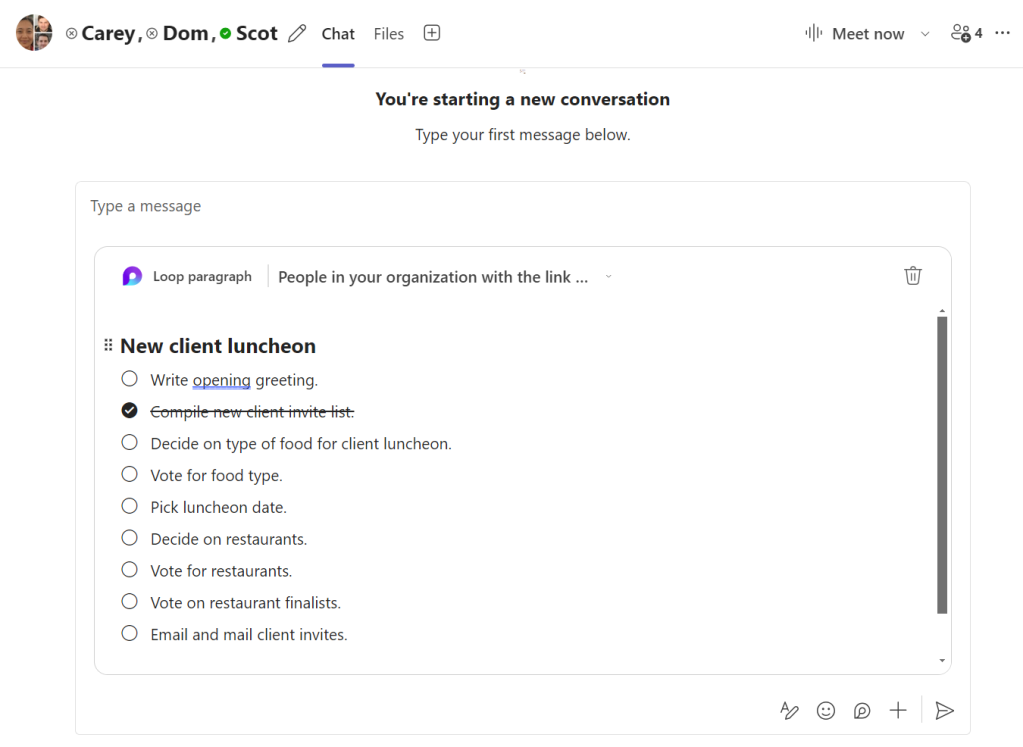
A checklist loop component in a Teams conversation.
Howard Wen
Once the component has been shared, team members can click on the component to edit it collaboratively, with all changes syncing in real time across all instances of that component throughout Microsoft 365.
For a deep dive on Loop components, see “How to use Loop components in Microsoft 365 apps.” (There’s also a standalone Loop web app — see “Microsoft Loop cheat sheet” for details.)
Copilot Chat in Teams
Copilot Chat offers several powerful generative AI capabilities to enhance your productivity within Teams using Microsoft’s favorite new child, Copilot.
It can summarize recent chats and channel conversations, helping you quickly catch up on discussions you may have missed. The tool can also answer questions about your Teams activity, providing insights into your communication patterns and interactions. Additionally, Copilot Chat can help draft messages for you, saving time when composing communications. Beyond these specific functions, it provides general information and assistance across a wide range of topics and tasks.
To access Copilot Chat within Teams, you need to look for the Copilot icon, which can be found either in the left navigation panel or at the top of the Teams interface. Once you locate the icon, click it to open a chat window with Copilot. From there, you can ask questions or request assistance with whatever you need help with, and Copilot will respond to your queries.

Copilot Chat within Teams.
Jonathan Hassell / Foundry
There are many practical ways to use Copilot Chat in your daily work.
- For example, you might ask it to “Summarize the Project Alpha channel from the last week” to get a quick overview of all the important discussions and decisions made in that channel.
- You could inquire “What did Sarah say about the budget?” to find specific information from past conversations without scrolling through lengthy message threads.
- Another useful application is asking “Help me write a message asking the team for status updates” when you need assistance crafting clear and effective communications to your colleagues.
This basic Copilot functionality is distinct from the more advanced Microsoft 365 Copilot integration which happens only with an additive license beyond the standard Microsoft 365 subscription. For organizations with Microsoft 365 Copilot licenses, Teams offers more advanced AI capabilities:
- Meeting-related features: Real-time meeting summaries and transcription, automated action items and follow-ups, and chat-like answers to questions about what was discussed during the meeting (even if you joined late).
- Chat and channel features: Comprehensive conversation summaries across multiple channels, suggested replies and message composition, and key highlights extraction from long conversation threads.
- Productivity features: Meeting preparation briefs based on related emails and documents, intelligent recaps for meetings you missed, and follow-up task identification and tracking.
You might not have this level of license, as they’re relatively expensive — $30 per user per month at the enterprise level or $21 per user per month for companies with fewer than 300 employees. That’s on top of what your organization is already paying for Microsoft 365. Microsoft recently reported 15 million paid M365 Copilot seats — just 3.3% of the Microsoft 365 user base.
Tips for using Teams effectively
Here are some battle-tested tips for getting the most out of Teams and, perhaps more importantly, not letting Teams eat your workday and become the place where knowledge goes to die.
Tamp down notifications and activity settings
Managing notifications prevents Teams from becoming overwhelming. If you go with the defaults, Teams will buzz you — and your phone, too, if you have the companion app installed and set up — every time you get a call, message, or chat with an @mention to you. In a busy organization, this can drive you up the wall or result in your entire day being swallowed by Teams notifications.
To customize notifications:
- Click your three-dot menu in the upper right and select Settings.
- Go down to Notifications and Activity on the left side.
Adjust everything to your preference. Teams is a very chatty app, so you may want to play around with these settings over time to find your particular sweet spot.
Add apps to Teams
In addition to its built-in integrations with Microsoft 365 tools like OneDrive, Loop, and Copilot, Teams lets you bring a variety of Microsoft and third-party apps right into a channel or group chat. You can add apps for brainstorming, project management, polling, training, data visualization, sales, customer support, and countless other uses, allowing you to work in them without having to leave the Teams environment.
See “18 Microsoft Teams apps for content collaboration and management” for complete instructions on finding and installing apps, but in a nutshell, you click the Apps button in the left navigation bar, browse or search the available apps, and then install the one you want. (Note that your organization may restrict which apps you can install in Teams.)
5 more quick tips
- Keep channels focused: Create channels for specific topics, projects, or workstreams rather than having everything in General.
- Use @mentions strategically: Mention individuals when you need their input, @channel when everyone in the channel should see it, and @team sparingly for truly urgent, team-wide announcements.
- Pin important messages: Hover over any message and click the three dots (…) to pin it to the top of the channel for easy reference.
- Save messages: Click the bookmark icon on messages you want to find later, then access them through the Saved item on the left navigation bar, toward the top.
- Use status messages: Update your status with custom messages like “In a meeting until 3pm” or “Working from home today” to keep teammates informed.
- Use keyboard shortcuts: Press Ctrl + / (Windows) or Cmd + / (Mac) to see a list of keyboard shortcuts that can speed up your work.
What to avoid
Teams is definitely a big step up over endless email chains, but that doesn’t mean it’s suitable for everything. Here are two things to avoid:
Trying to replace all emails with Teams conversations and links. Sometimes we humans have a tendency to gravitate to whatever new features and tools there are, proclaiming them the “killer” of whatever came before and trying to force old square pegs into shiny new round holes. Teams is no different.
As an instant messaging platform, Teams is ideal for back-and-forth quick hits. If your message is longer than a paragraph, chances are, it should go back to email. Longer conversations, project planning, longer term development, all of those types of deep thinking and analysis are best suited for email. In email, you can sort, filter, set up rules, and do other automated things to manage how you see and find information. It’s not impossible to use Teams for longer conversations, but it’s suboptimal.
Trying to send emails to external folks. Unfortunately, there is no way for Teams to send email out to the internet, so unless you want to invite external users as guests into your team (assuming you have permission to do that), you will need to handle some subjects that involve people outside of your organization via old-fashioned email messages. That, of course, limits the utility of using Teams in projects or environments with a lot of collaboration with external users when they’re not a part of your Teams environment.
Your organization may restrict how external users can interact with your Microsoft 365 setup, usually via data loss prevention policies and prohibitions on folks outside your organization accessing Teams chats and channels. Ask your IT department if you have questions.
This article was originally published in March 2018 and most recently updated in April 2026.
