


Copilot can also organize the existing values from specified cells into a new column, row or table. In your prompt, specify the cell range, column, or row that you want copied into a new column, row, or table.
- Add a column with the heading “San Francisco” and fill its values with “100”.
- Copy the values of “Plane Tickets” and arrange them in a new column on a new sheet with each corresponding city in its own row.
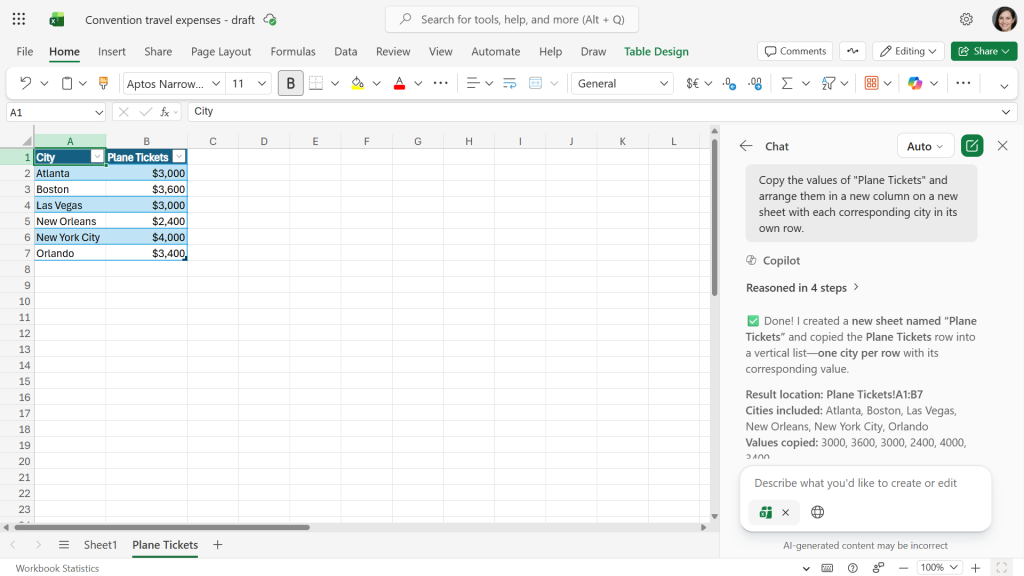
Copilot has generated a new table with the data from the “Plane Tickets” row, arranged as described in the prompt.
Howard Wen / Foundry
3. Create pivot tables
In Agent Mode: First, select a cell range, columns, or rows in your table. Then type a prompt instructing Copilot to create a pivot table from the selected cells. (Or, if you don’t manually select them in the table, you can list the cell range, columns, or rows in your prompt.)
- Create a pivot table for Column B.
- Analyze Plane Tickets and Hotel and present as a pivot table.
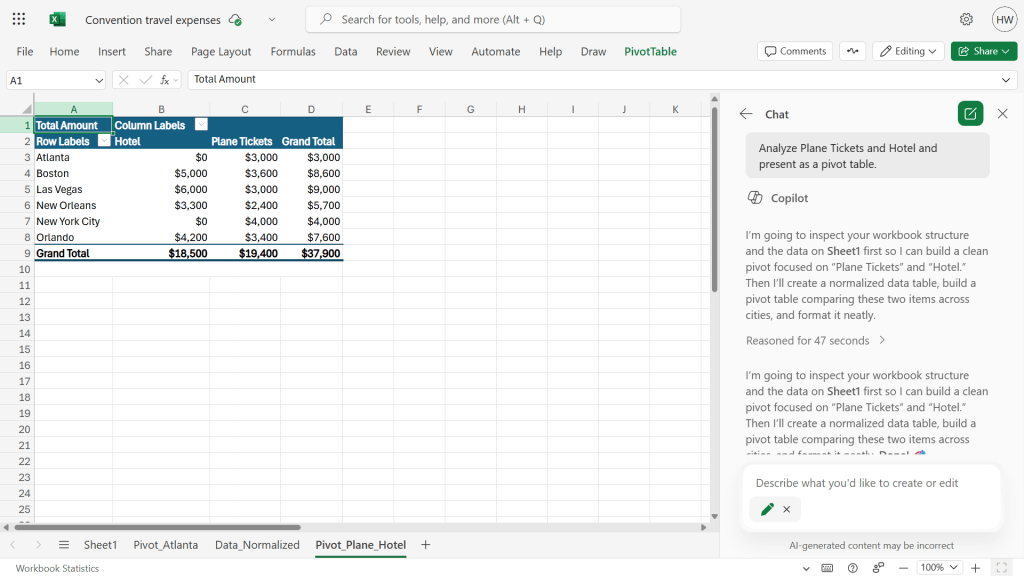
Copilot can quickly create a pivot table from specified source data.
Howard Wen / Foundry
4. Apply conditional formatting to your tables
In Agent Mode: If you’d rather not have to design every little aspect of your spreadsheet, you can prompt Copilot to apply conditional formatting to a table. It can suggest which cells to apply conditional formatting to and their colors.
